
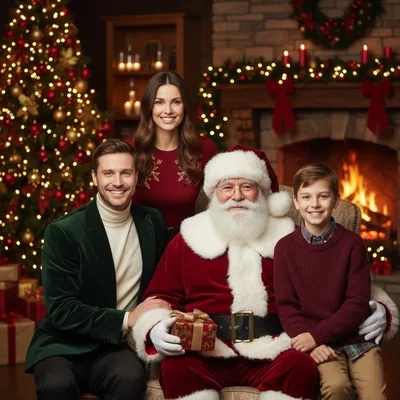
Santa at your house

Add Santa to Photo: Catch Him in Your Own Room

Add Santa to Photo puts Santa into one picture of your room or family, in a scene you choose, and gives you a 2K image with no watermark. No camera to hide, no app to install, no staying up past midnight.

Examples
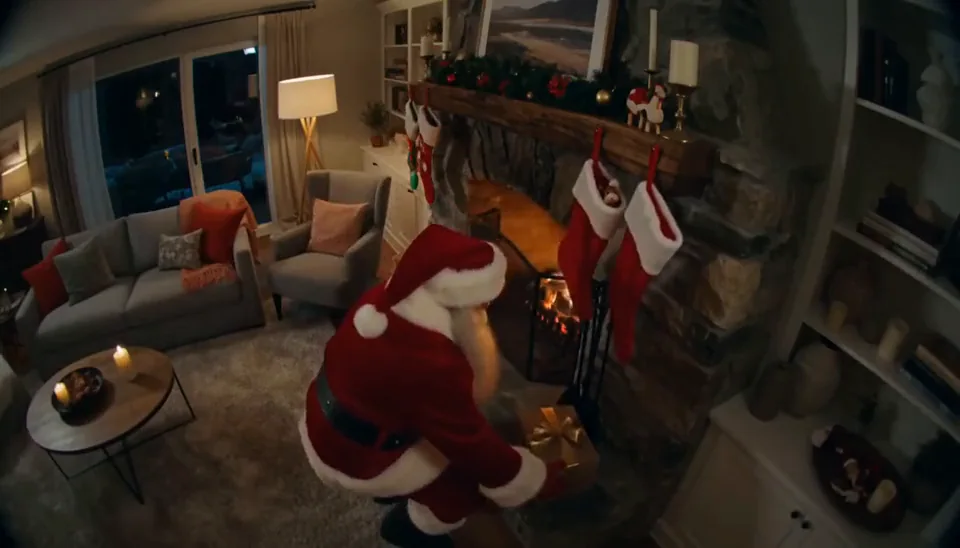
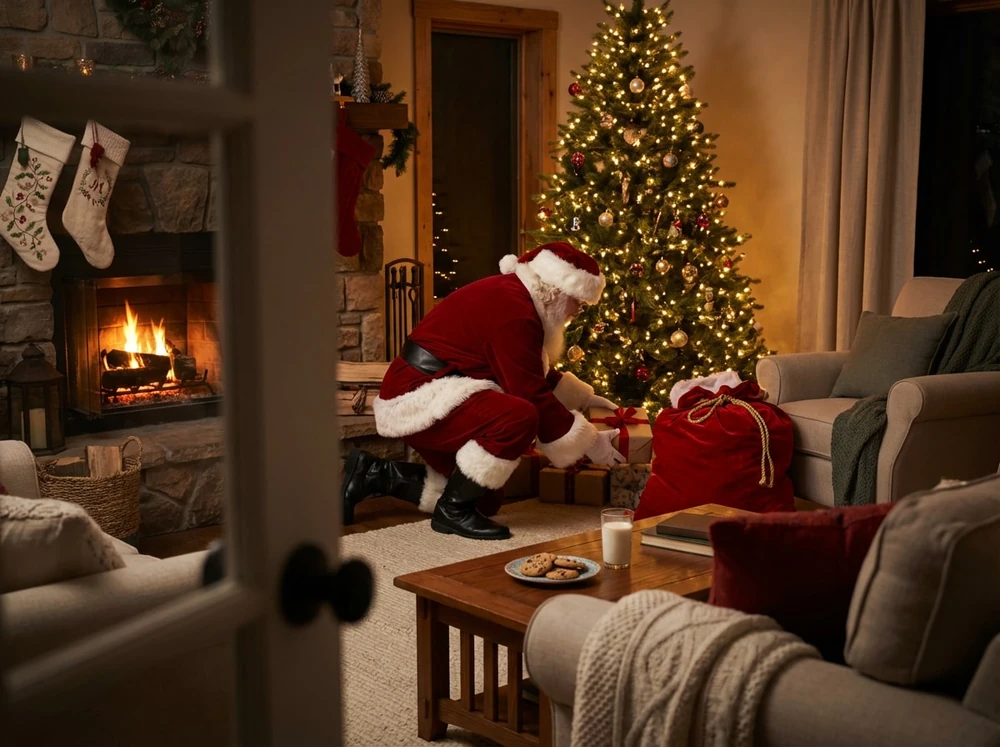
A living room with Santa leaving a gift by the fireplace
Your room or family photo

Santa leaving a gift by the fireplace.

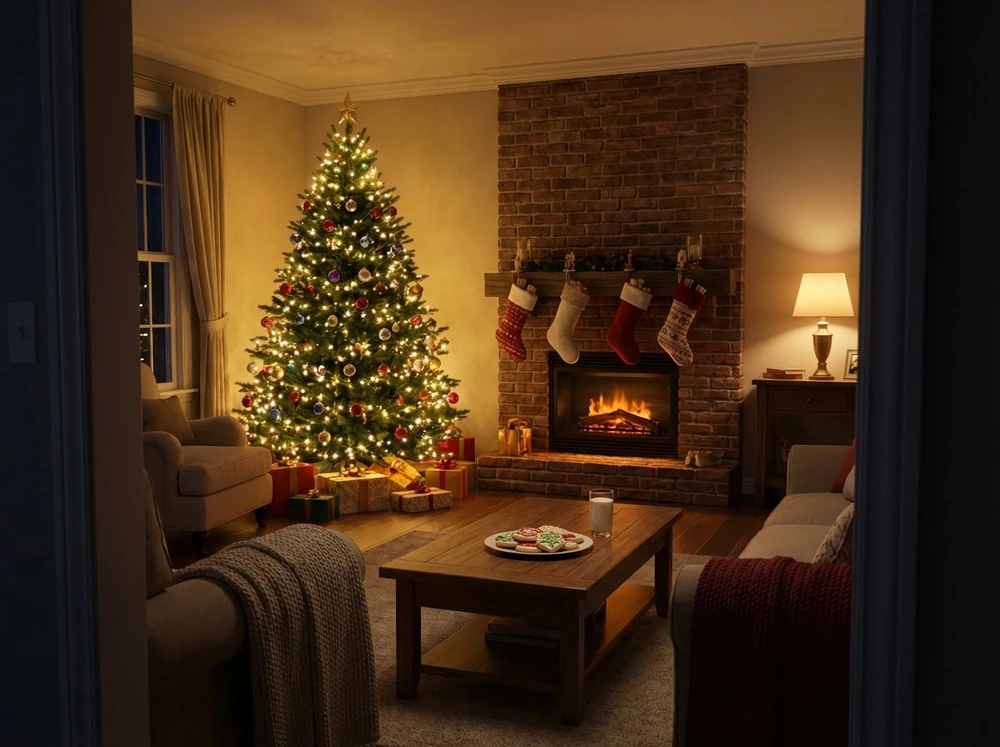
One clear photo with the lights on, up to 10 MB; drag it here or scan the code on your phone.

  • ✓ Whole room
  • ✓ Room to spare
  • ✗ Too dark
  • ✗ Too close
Scene
More options

From $9.98 · No subscription · Credits never expire · Photos deleted within 2 days

1 credit (about $0.40–$0.67)

What you get

What You Get When You Add Santa to Photo

  • 2KSame shape as your photoAdd Santa to Photo follows the proportions of your original, so a phone shot stays a phone shot. The download has no watermark.
  • 5+ scenesA ready scene or your own wordsAdd Santa to Photo offers ready scenes, or you can describe your own idea in a sentence. Custom ideas go through content review.
  • 2 daysYour upload gets deletedThe photo you upload leaves our storage within 2 days. The finished Santa picture stays in your account until you ask us to remove it.

Pick the moment

Five Santa Scenes, Plus Your Own Idea

Add Santa to Photo comes with five ready scenes, each for a different kind of room or moment. You can also type a scene of your own.

  1. A living room with Santa placing gifts under the Christmas tree
    For the morning reveal · Leaving giftsParents who want the kids to see Santa beside the presents.
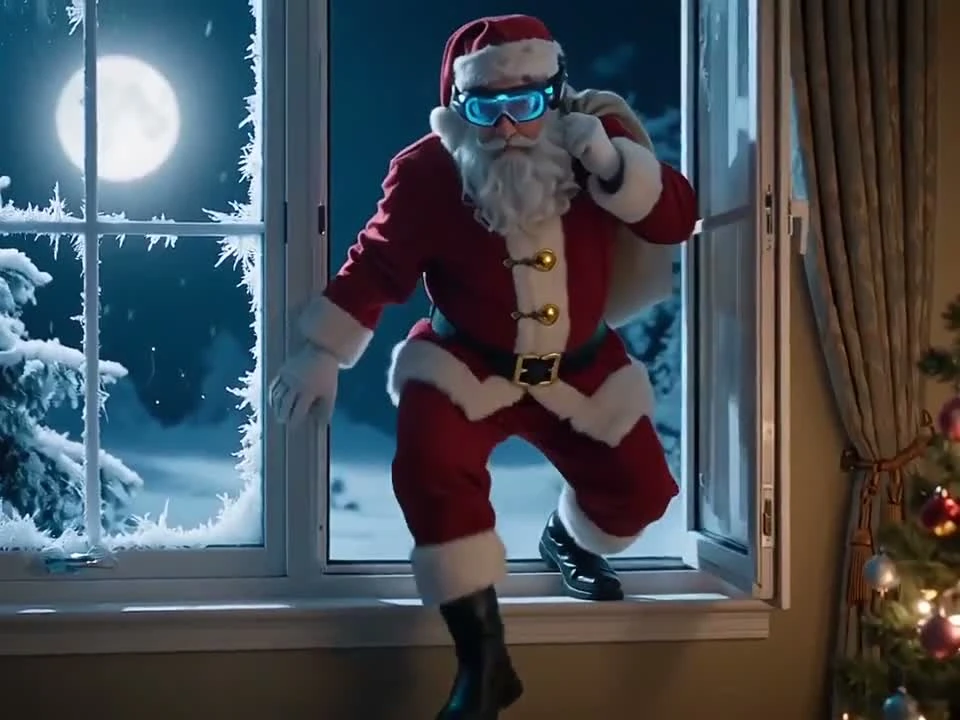
  2. Santa climbing in through a living room window
    For the big pane · At the windowRooms with a large window and a night view behind the tree.
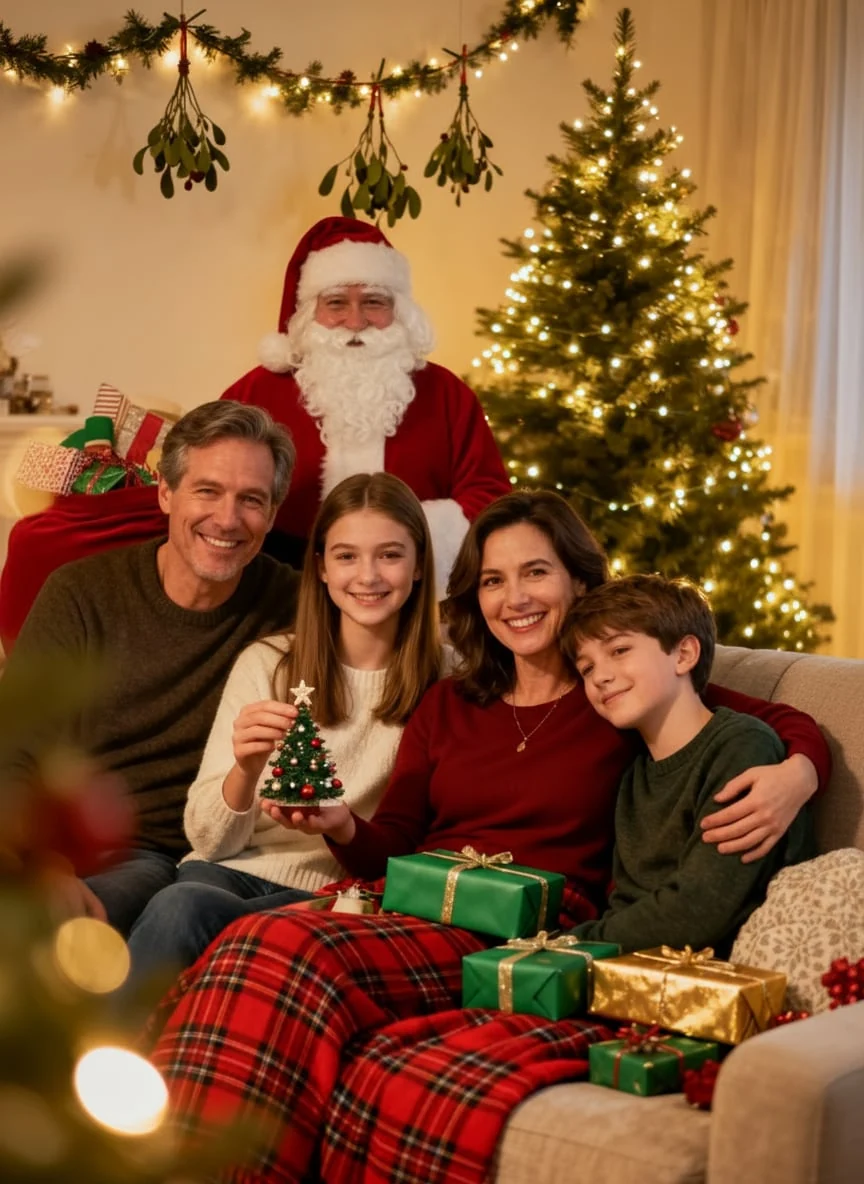
  3. A family on the sofa with Santa joining behind them
    For a family shot · In the photo with youAnyone who wants a picture with Santa and would rather skip the mall line.
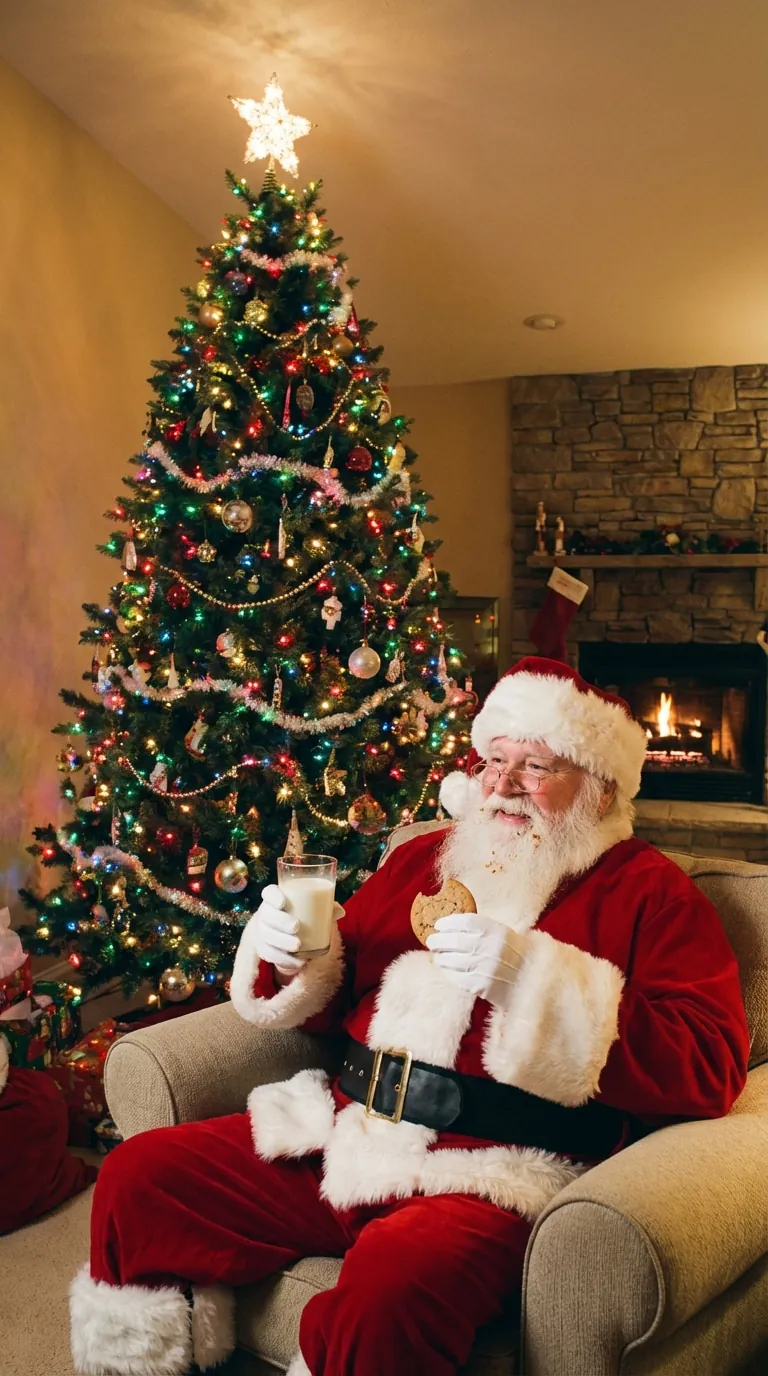
  4. Santa in an armchair beside the Christmas tree
    For the evidence · Eating the cookiesFamilies who leave a plate out on Christmas Eve.
  5. Santa sitting with a family in front of a lit fireplace
    For a room with a mantel · By the fireplaceHomes with stockings up. Add Santa to photo and sit him by the fire.

How to Add Santa to Photo in 3 Steps

  1. Upload one photo

    Add Santa to Photo takes one shot of the room or the people in it, up to 10 MB, dragged in or sent from your phone.

  2. Choose the scene

    Choose how to add Santa to photo: Leaving gifts, By the fireplace, At the window, In the photo with you or Eating the cookies, or describe your own. Add Santa to Photo then works from that choice.

  3. Download the Santa photo

    Add Santa to Photo returns a 2K image with no watermark. Save it, or use it as the start of a short clip.

Turn it into an AI Christmas video

What to shoot before you add Santa to photo

The room photo does most of the work. Add Santa to Photo places him into the picture you upload, so your shot sets the light, the angle and the story the scene tells.

Read more

Hold the phone at chest height, the way a parent peeking from the doorway would see the room. Leave open floor near the tree, the fireplace or the front door. A frame packed with furniture leaves Santa nowhere to stand.

  • Lights on. A dim, grainy room makes any added figure look pasted in.
  • One light source. A bright window plus warm tree lights is hard to match, so switch one off.
  • Close to Christmas Eve, with the tree lit, so the decorations match the morning.
  • Room for him. Leave space beside any people so Santa isn't squeezed against the edge.

An AI Santa photo, a camera trick or a mall visit

An AI Santa photo starts from a picture you already took. A phone app that overlays a cartoon Santa needs you to film in the moment, and a hidden camera only catches whoever really walks past. If you've been hoping for a Santa-caught-on-camera picture, the goal is the same: proof for the kids, without the midnight setup.

Read more

Add Santa to Photo suits you when the room is ready and you only want the picture. A mall visit still wins if the kids want to sit on his lap and talk, and a photographer wins for a posed, framed print. It's the better pick when you want to do it after the kids are in bed.

A tool that invents a whole scene gives you somebody else's house. Each AI Santa picture here starts from the room your kids already know, and Add Santa to Photo adds him to it.

Showing the Santa photo to your kids

One picture, shown once on Christmas morning, lands better than five versions on the fridge. Some parents leave the phone by the empty cookie plate and let the kids find it. Others pull it up when someone asks how Santa got in without a chimney.

Read more

Check the faces and the background first. Add Santa to Photo is built to keep the people and the room in your picture, but details can change, and a missing stocking is exactly what older kids spot. If something looks off, run Add Santa to Photo again with a cleaner shot, which uses more credits.

Keep your original too, since "look, that's our rug" is a good answer to sharp questions. Think twice before posting the Santa version publicly, where a classmate's parent might leave a comment the kids can read.

Make an AI family Christmas photo

What It Costs to Add Santa to Photo

15 credits

$9.98

15 photos, or 1 video + 5 photos

150 credits

$59.99

150 photos, or 15 videosSave 40%

Credit cost: 1 per Santa photo, and 10 per Christmas video with its starting photo included.Credits stay in your account with no expiry date.Packs are one-time purchases with no subscription: 15 credits for $9.98, 50 for $24.99 or 150 for $59.99.If a generation fails, the credits go back to your balance automatically.

Changed your mind? Ask within 7 days if you've used less than 5% of a pack; a 5% fee applies. See the refund policy.

Who it's for

Who Invites Santa Into the Picture

  • Parents of believers

    Add Santa to Photo gives you Christmas morning evidence from your own living room, made after bedtime with nobody staying up to film.

  • Grandparents far away

    Add Santa to a shot of your own hallway for the grandkids. They'll recognize the house, and it can go on a card too.

  • Homes with no fireplace

    Live in an apartment? Add Santa to Photo can start from a front door or a corner with a small tree, which settles the chimney question.

  • Last-minute decorators

    Missed the mall line? Use Add Santa to Photo on one family shot by the tree and choose In the photo with you.

  • Cafes and small shops

    Shop owners can use Add Santa to Photo for a storefront post. Paid results can be used commercially when you have the rights to the photo and the people in it.

When to Add Santa to Photo

  1. Early December

    Put up the tree and take a test shot before you run Add Santa to Photo, while there's still time to clear the messy corners.

  2. The week before Christmas

    Shoot the final room with the real decorations up and run Add Santa to Photo, so you have time to try another scene.

  3. Christmas Eve

    After bedtime, set out the presents and cookies the way the picture shows them. Add Santa to Photo only needs the one shot.

  4. Christmas morning

    Show the picture once, right by the empty plate, and keep the original room shot ready for older kids' questions.

Put a Christmas filter on the photo instead

Santa Photo Questions

Is this a Santa cam?

No. Add Santa to Photo is a still-image tool, not a live feed from the North Pole or a camera you set up at home. Video files and live footage aren't supported, so a webcam site is the place to watch him in real time.

Can I add Santa to a picture with my kids in it?

Yes. Add Santa to Photo accepts pictures with people in them, including group shots, and it's built to keep those people as they appear. Details can still shift, so zoom in on every face before you share. Leave open space beside the group, then choose In the photo with you.

Do I pay for each Santa picture separately?

Add Santa to Photo charges per picture: the credit cost is 1 for each Santa photo, and 10 if you turn one into a Christmas video. Packs are one-time: 15 credits for $9.98, 50 for $24.99 or 150 for $59.99. A failed run gets its credits back.

How do I get a picture of Santa caught on camera?

Start from a shot that already feels like a snapshot: a wide view of the room, taken from high in a corner. Upload it to Add Santa to Photo and choose Leaving gifts or Eating the cookies.

Will my kids be able to tell it's fake?

An AI Santa photo can fool some kids and not others, and no tool can promise either result. Matching the decorations to Christmas morning and using one even light source help more than anything else. Older kids go for the small stuff, so check the rug, the stockings and the faces first.

Does my room need Christmas decorations in it?

No. Add Santa to Photo works on an ordinary room with no tree or lights, because the upload only has to show a room or people. The story is easier to believe when the room already has some Christmas in it, so hang the stockings first if you can.

Will the rest of my room change?

Add Santa to Photo is built to keep your room, but it can't lock every detail in place. A picture on the wall or a pattern on the rug may come back slightly different, so compare the result with your original. A clearly broken result can be appealed within 7 days.

Add Santa to Photo Before Christmas Eve

Pick the room, take the picture with the lights on and leave a spot by the tree. That one shot is all Add Santa to Photo needs from you.

Add Santa to Photo