Santa at your house

AI Christmas Video Generator: Santa in Your Own Home

Upload a photo of your living room or a doorbell camera screenshot, and get a 5 or 10 second AI Christmas video of Santa walking through it, with sound on or off.

Examples
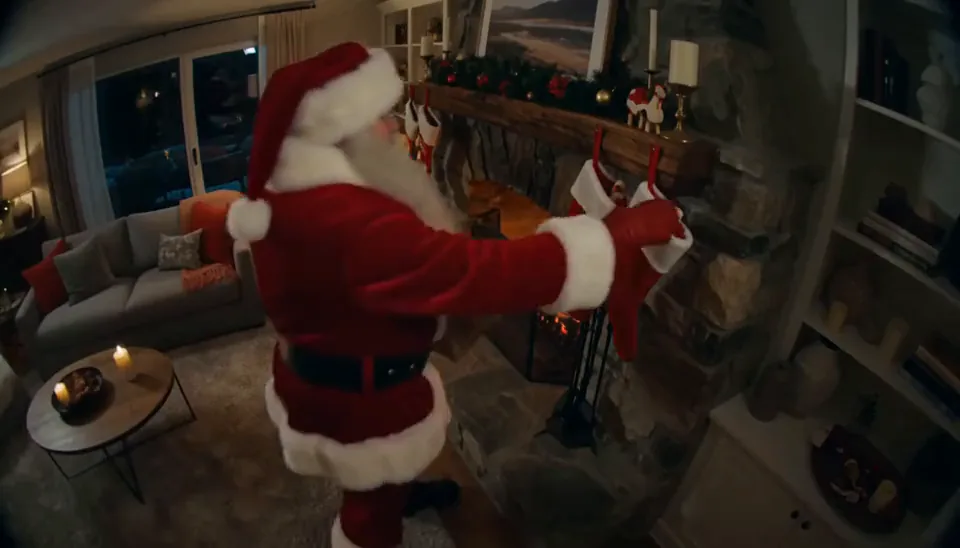
Santa hanging a stocking by a lit fireplace
Photo of your room

Santa hanging a stocking by the fireplace.

Use one clear photo up to 10 MB, like a bright room or a doorbell camera screenshot, with space for Santa to walk. Drag it in, or scan the QR code to send it from your phone.

  • ✓ Whole room
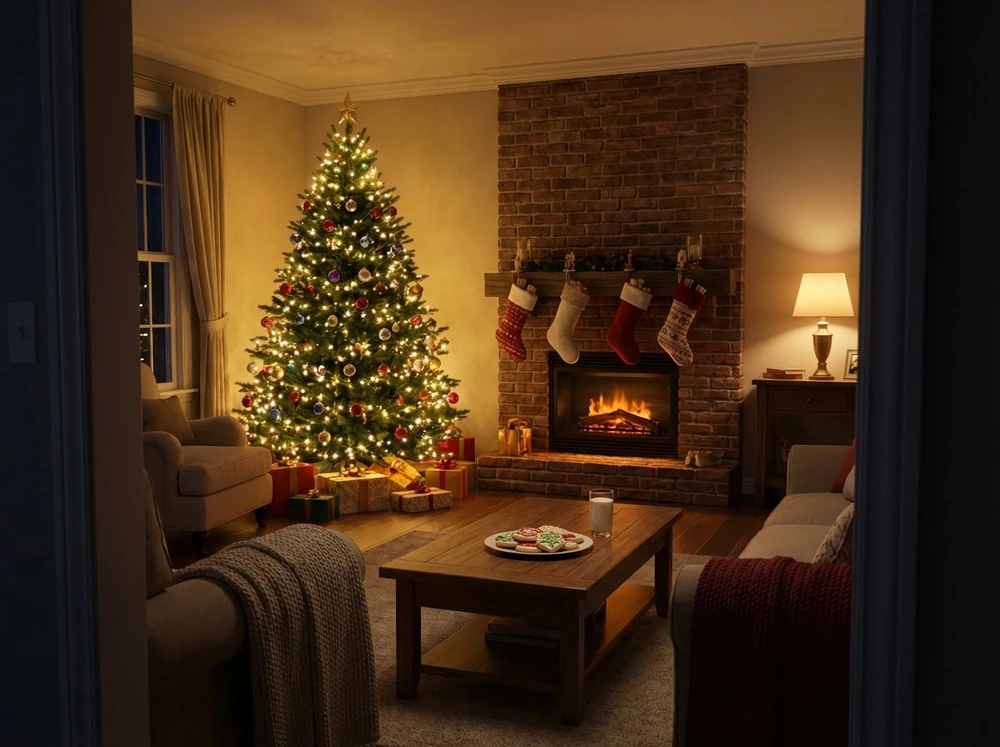
  • ✓ Room to spare
  • ✗ Too dark
  • ✗ Too close
Scene
More options
Length
Sound

From $9.98 · No subscription · Credits never expire · Photos deleted within 2 days

10 credits (about $4.00–$6.65)

What you get

What every AI Christmas video comes with

  • Length5 or 10 secondsPick a 5 second AI Christmas video for a quick surprise in a text, or 10 when Santa has more to do.
  • SoundOn or offKeep the audio for the family chat, or switch it off and post the clip with your own song.
  • FileMP4, no watermarkYour AI Christmas video arrives as a plain MP4 with nothing stamped on it, ready to send or keep.

Pick the moment

Five Santa Moments to Choose From

Your AI Christmas video starts from a still of Santa in your photo, so the moment you pick decides what happens in the clip. You can also describe your own.

  1. For a morning reveal · Leaving giftsParents who want the kids to see Santa set presents by the tree.
  2. For a big window · At the windowHomes with a window Santa could climb through on a snowy night.
  3. For the evidence · Eating the cookiesFamilies who leave out a plate and want proof he stopped by.
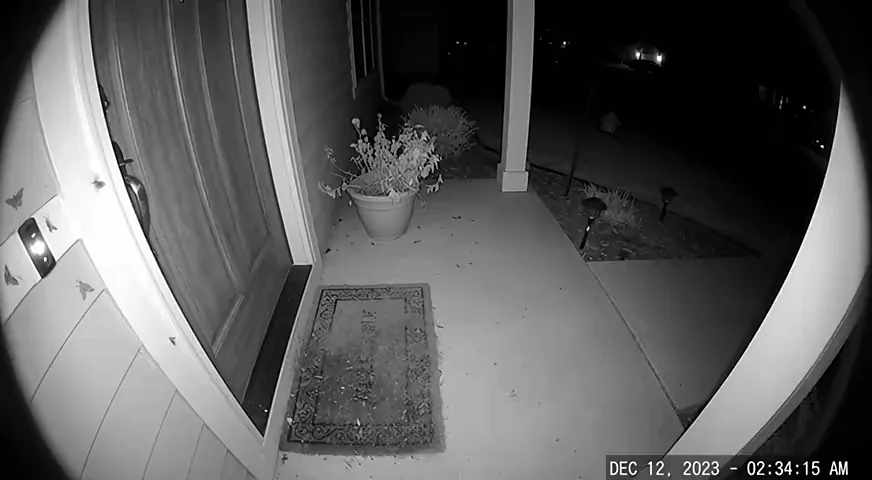
  4. For the front door · Doorbell cameraAnyone with a doorbell camera who wants Santa caught on the porch.
  5. For a room with a mantel · By the fireplaceHomes with stockings up, where Santa hangs one more.

How to make an AI Christmas video of Santa in your home

  1. Add your photo

    Upload one clear shot of your room or front door, then pick a moment like Leaving gifts or Doorbell camera. You'll see a still of Santa in your photo first, and that's already included in the video price.

  2. Set length and sound

    Choose 5 or 10 seconds, then switch sound on or off. Those are the only AI Christmas video settings, so there's no timeline to learn.

  3. Save the MP4

    Watch your AI Christmas video and save the file. It stays in your account until you ask us to delete it.

Add Santa to a still photo instead

Pick a photo that gives Santa room to move

Your photo makes the biggest difference to how your AI Christmas video turns out. A clear, well-lit shot with open floor or a path to the door gives the generator far more to work with than a dark corner or a cluttered close-up.

Read more

Each AI Christmas video is generated fresh, so results will vary.

  • Space: leave open floor, a doorway or a path he could walk along.
  • Light: daylight or a bright room beats one dim lamp.
  • Angle: a wide shot from the corner of the room shows more than a close-up.

An AI Christmas video or a video template?

Template editors suit people who already have footage. You drop in clips, change the text and music, and arrange everything on a timeline. For a year-in-review reel, that's still the right tool.

Read more

An AI Christmas video suits people who have one good picture of their home and no footage at all. There's nothing to arrange. A video made this way is one short clip from one photo, so it won't replace a reel.

  • Lots of clips, plus titles and transitions: use a template editor.
  • Santa walking through your own room: make an AI Christmas video here.
  • Santa speaking to your child by name: look for a personalized Santa message service, because we don't make those.
  • Santa standing in your living room as a still picture: add him to a photo instead.
  • One family picture you want to see move: that works here too.
Add Santa to photo

What to expect from your clip

A common complaint about AI holiday clips online is that they look fake: Santa floats, or the room warps. Your AI Christmas video starts from your own photo to keep the room familiar, but small details can still change once the image moves: a lamp, a shelf, the pattern on a rug. Kids look closely, so watch it first.

Read more

If generation fails, your credits go back on their own. If your AI Christmas video comes back clearly broken, you have 7 days to appeal. Your uploaded photo leaves our storage within 2 days, and the finished clip stays in your account until you ask us to delete it.

Read the refund policy

What one AI Christmas video costs

15 credits

$9.98

15 photos, or 1 video + 5 photos

150 credits

$59.99

150 photos, or 15 videosSave 40%

One AI Christmas video uses 10 credits, and the still of Santa it starts from is already included.Credits don't expire, so a pack you buy now still works next December.Credit packs are a one-time purchase with no subscription: $9.98 for 15 credits, $24.99 for 50 credits, or $59.99 for 150 credits.If a generation fails, the credits return to your balance automatically.

Changed your mind? Ask within 7 days if you've used less than 5% of a pack; a 5% fee applies. See the refund policy.

Who it's for

Who makes an AI Christmas video of Santa

  • Parents planning a surprise

    Show the kids a 10 second AI Christmas video of Santa in your own living room when they come downstairs.

  • Anyone with a doorbell camera

    Turn a screenshot of your porch into an AI Christmas video of Santa at the door, then text it to the family.

  • Parents with faraway grandparents

    Send a 5 second AI Christmas video of Santa in the kids' room to relatives who can't make the trip.

  • People who still send cards

    Mail an AI Christmas card to the older relatives, then text the Santa clip to everyone else.

  • Families with a favorite picture

    Have a family photo you love? Upload it to make an AI Christmas video where the picture itself moves.

When to make your AI Christmas video

  1. Early December

    Make your AI Christmas video while you still have time to try a different room or moment.

  2. The week before Christmas

    Send your AI Christmas video along with the cards, so relatives get both in the same week.

  3. Christmas Eve

    Snap the room once the kids are in bed, scan the QR code to send the photo from your phone, and have your AI Christmas video ready by morning.

  4. After the holidays

    Leftover credits don't expire, so they'll still be there for a New Year clip or next December.

See credit packs

AI Christmas video questions

What kind of photo should I upload?

For an AI Christmas video of Santa, upload one clear, bright photo of a room, a window or your front door, or a doorbell camera screenshot. No faces are needed. Leave some open floor so he has space to walk. Family photos work too: Santa joins the picture and everyone stays in place.

How long is each clip?

Each AI Christmas video runs 5 or 10 seconds, and you choose the length before generating. Five seconds suits a quick text to family. Ten gives a slower scene more room. We don't make longer videos, so for anything longer you'd need to join clips in a separate editor.

Does the video have sound?

Yes, if you want it. Sound on an AI Christmas video is a simple on or off switch. Leave it on for a clip with audio, or turn it off if you'd rather add your own song. You can't pick a track from a library or type words for someone to say.

Can Santa talk to my kids or say their names?

No. Santa doesn't talk in an AI Christmas video made here, so there's no spoken message, lip sync or child's name read aloud. He moves through your room without speaking to the camera. If you only need a still picture of him, you can add Santa to a photo instead.

How many credits does one video use?

One AI Christmas video uses 10 credits at either length, with sound on or off, and that includes the still of Santa it starts from. A photo on its own uses 1 credit. Packs start at $9.98 for 15 credits and go up to $59.99 for 150 credits, with nothing to renew.

How is this different from a Santa cam app?

A Santa cam app usually lays a ready-made Santa animation over your phone camera. We generate your AI Christmas video from your own photo, so the clip starts with your room. Pick an app if you want to play with it live. Our tool makes one file you can save and share.

Can I use the video for my business?

Yes. A paid AI Christmas video can be used commercially if you have the right to use the uploaded photo and everyone in it. Ask staff or customers before their faces go in a holiday ad. The MP4 has no watermark to crop out.

Got a room Santa should visit?

Upload a photo of it, choose 5 or 10 seconds, and see your AI Christmas video.

Make my AI Christmas video